Keep the Period You Need in View
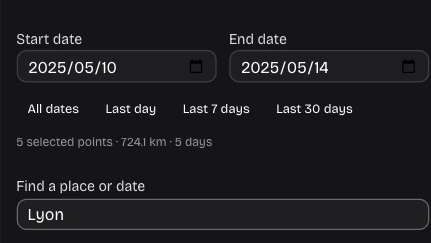
Separate a weekend or work trip from Google Timeline history using date filters. The selected period controls map points and exportable records, leaving your original file intact.
Open the toolExplore Google Timeline history from your exported JSON. This Google Maps Timeline Viewer pairs a dated map with searchable entries: find a remembered stop, inspect its coordinates and save selected records, with local browser processing.
0
Recorded points
0 km
Point-to-point distance
0
Recorded days
Route-only view. Allow map background in Controls to load street labels.
Import Timeline JSON or a saved project with recorded locations. You can also try the sample journey.
Lines connect samples, not exact roads. Dates and times follow the export’s timezone (UTC for raw epoch timestamps), independent of this device’s timezone.
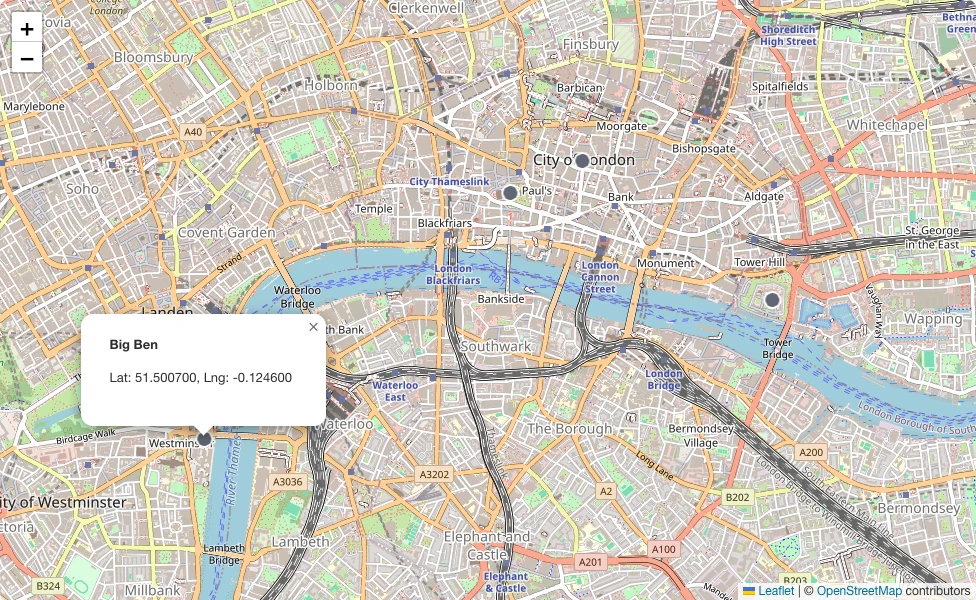
London city visits
Google Timeline history exports contain coordinates, dates and sometimes place names. Compare the five London visits in this sample with the map beside them to understand when and where each recorded stop took place.
[
  {
    "startTime": "2026-10-08T09:00:00+00:00",
    "endTime": "2026-10-08T11:00:00+00:00",
    "visit": {
      "hierarchyLevel": 0,
      "probability": 0.99,
      "name": "Big Ben",
      "topCandidate": {
        "placeId": "synthetic-london-0",
        "semanticType": "Big Ben",
        "probability": 0.99,
        "placeLocation": "geo:51.5007,-0.1246"
      }
    }
  },
  {
    "startTime": "2026-10-08T13:00:00+00:00",
    "endTime": "2026-10-08T15:00:00+00:00",
    "visit": {
      "hierarchyLevel": 0,
      "probability": 0.99,
      "name": "London Eye",
      "topCandidate": {
        "placeId": "synthetic-london-1",
        "semanticType": "London Eye",
        "probability": 0.99,
        "placeLocation": "geo:51.5033,-0.1196"
      }
    }
  }
]A map timeline makes those visits easier to inspect. Open the sample, select a location to read its details, then use Fit route for the full period.
Map enlargement is loading. Please wait; the map above is still available to view.
Choose a supported Google Timeline history JSON or saved project. The browser reads the file locally and prepares dated entries for the map.
Filter Google Timeline history by date, then search the entry list using a recorded date, place name or coordinates to locate a stop.
Inspect an entry, fit the route, or save the points remaining after date and privacy filters as CSV or GeoJSON for another tool.
Separate a weekend or work trip from Google Timeline history using date filters. The selected period controls map points and exportable records, leaving your original file intact.
Open the tool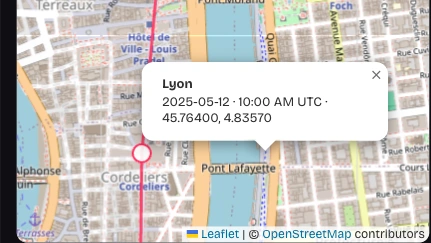
Search the records by place name or coordinates, then select a match to read its date and location. Use the surrounding samples to connect a remembered stop with the rest of the trip.
Open the tool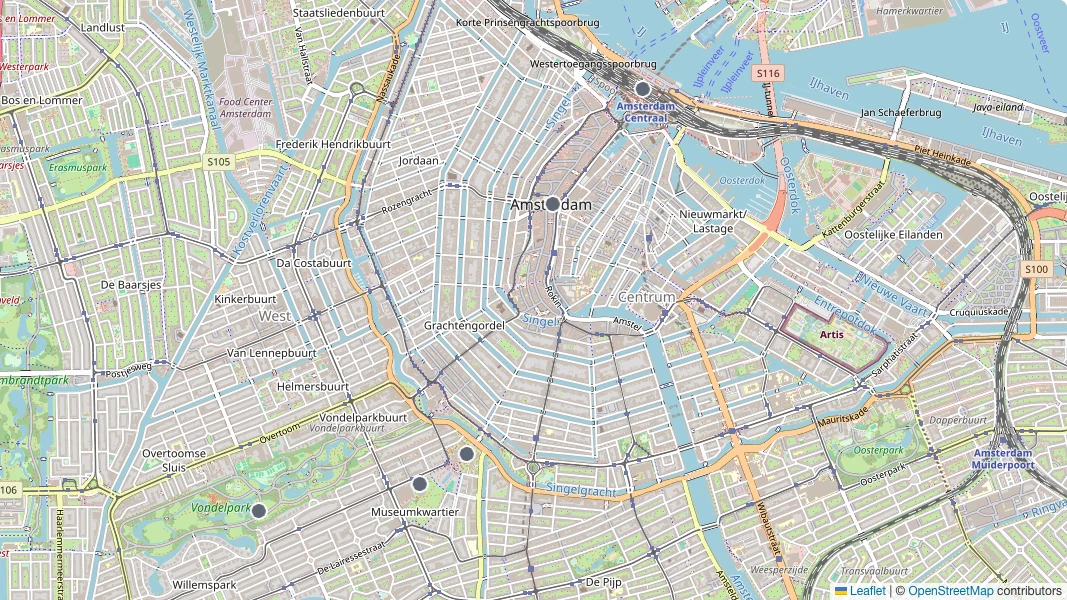
Focus on one Google Timeline history entry, then choose Fit route for an overview. Enable OpenStreetMap with consent for street context. Connections follow recorded samples rather than reconstructing roads.
Open the tool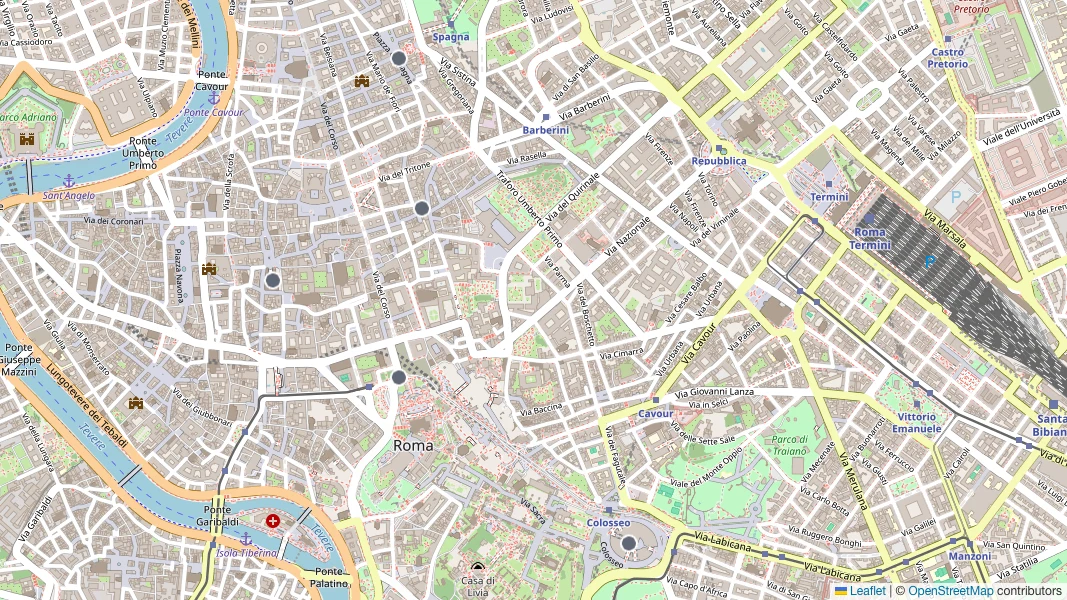
Export selected Google Timeline history as CSV for spreadsheets or GeoJSON for mapping software. Both follow date and privacy filters; entry-list search does not narrow the saved dataset.
Open the toolConnect a place with its recorded time. Keep the original export for reference while you inspect stops, routes and gaps in your trip.
Review Google Timeline history locally in your browser. Inspect records and download outputs while keeping the imported location file on your device.
Source dates and UTC offsets guide the calendar and entry labels. Opening an export in another timezone does not shift those recorded days.
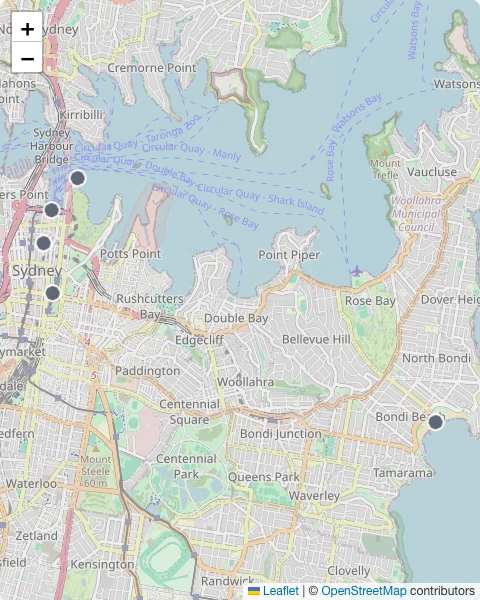
Each selected entry exposes its recorded date, time and coordinates. Check the source details when a route connection seems surprising or a stop is unfamiliar.
Save a project file to reopen the full imported journey later. Optional browser storage makes resuming on the same device more convenient.
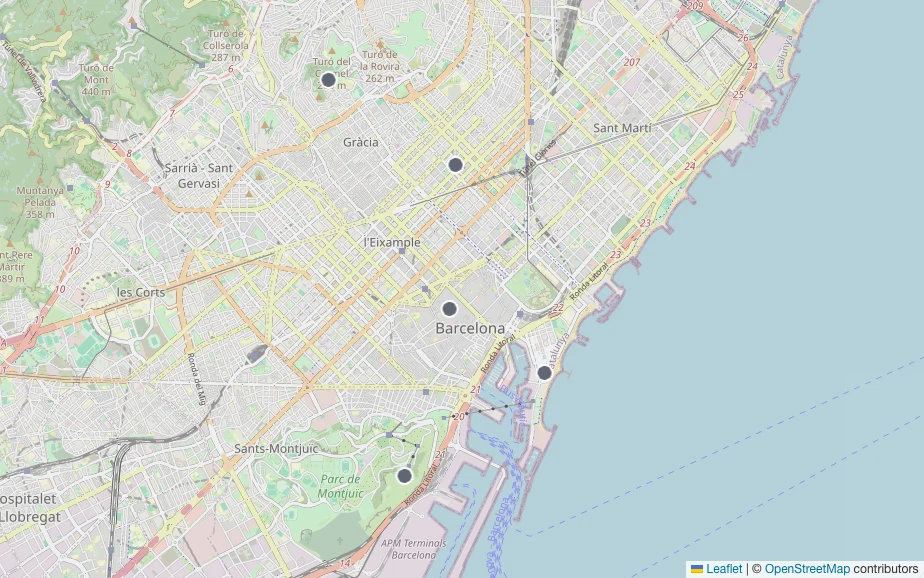
After a trip, connect a remembered place with its day using Google Timeline history. Choose the dates, find the stop and inspect its details alongside the surrounding journey.
The Timeline.json visualizer accepts supported Google Timeline history device exports, semantic Google Takeout and raw E7 records. Reopen saved projects too. Files must contain recognized records and stay within 50 MiB and 100,000 points.
Choose your exported JSON in the viewer above, then explore its map and dated list using filters and search. The viewer reads your file without signing in to Google or fetching account locations.
This viewer displays the Google Maps Timeline history in your file without account synchronization or automatic updates. Export newer records and open that file to inspect a more recent period.
Timeline maps use source dates and UTC offsets for filters, map details and CSV. Raw epoch timestamps use UTC. Google Timeline history keeps those dates when opened in another timezone.
Search Google Timeline history by a place name or coordinates in the records, then select a match. Names require source data; coordinates help you inspect unnamed samples.
Google Timeline history CSV and GeoJSON exports include every point remaining after date and privacy filters. List search does not narrow them. Projects and optional browser copies retain all imported points, including hidden locations. Choose a filtered export when sharing a selected period.
Your location file is processed locally without being uploaded. Street maps load only after consent. OpenStreetMap receives tile requests for the displayed areas, revealing that geographic context even though the JSON stays on your device.
A Maps Timeline Visualizer shows exported samples. It cannot restore missing Google Timeline history visits, supply absent names or infer exact roads. Check dates and coordinates before interpreting connecting lines as precise travel paths.
Yes. Review Google Timeline history and export CSV, GeoJSON or a project file without an account. Try a sample first, then open your own JSON and select a period.

Open Google Timeline history or try a sample. Choose dates, inspect a recorded stop and save the period you want to understand more closely.
Explore your timeline history